Registration
How to Collect Youth Sports Registration Fees Online
Connect Stripe, set a registration fee, offer installments and discounts, and track what families owe, with the Stripe and Team Assist fees explained.
This guide is for club registrars and treasurers who want families to pay registration fees online instead of chasing checks. By the end you will have Stripe connected, a program with a fee and payment options, and one page that shows what has been collected.
Your organization sets its own fees and owns its refund policy. Payments go to your organization's Stripe account, with payouts to its bank account.
Know what online payments cost
Team management in Team Assist is free. Online collection has a Stripe fee and a Team Assist fee, and both come out of each payment. These are standard US rates:
- Stripe, card payments: 2.9% + 30¢ per payment.
- Stripe, ACH bank debit: 0.8% per payment, up to $5.
- Team Assist collection fee: 1%, capped at $3 per invoice, even when the invoice is paid in installments.
Here is a $240 registration fee worked through. Paid by card in one payment, Stripe keeps $7.26, Team Assist keeps $2.40 and your organization receives $230.34. Paid by bank debit, your organization receives $235.68. Split into three $80 card payments, each payment carries its own Stripe fee, so your organization receives $229.74.
Custom Stripe pricing and international cards cost more. Payments a family makes directly to you, such as cash or a check, carry no fees. The Team Assist home page explains how the service makes money.
Connect your organization
1. Start the Stripe setup
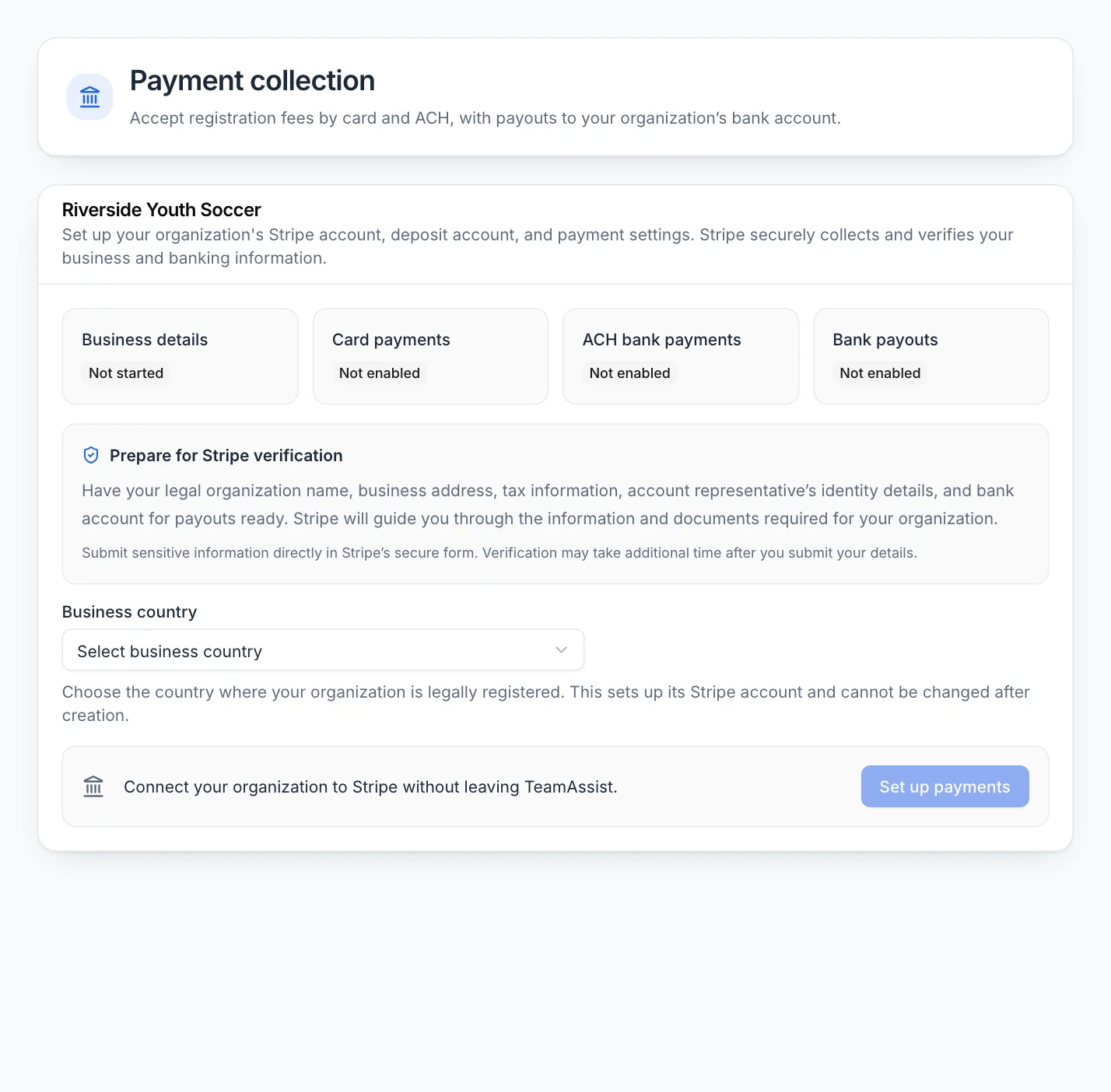
Only the organization owner can do this step. Open Settings, then Payment collection. The page lists what to have ready: your legal organization name, business address, tax information, the account representative's identity details and a bank account for payouts.
Choose your Business country with care, because it cannot be changed afterward. Select Set up payments and complete Stripe's form. Sensitive details go directly to Stripe.
2. Wait for Stripe's review
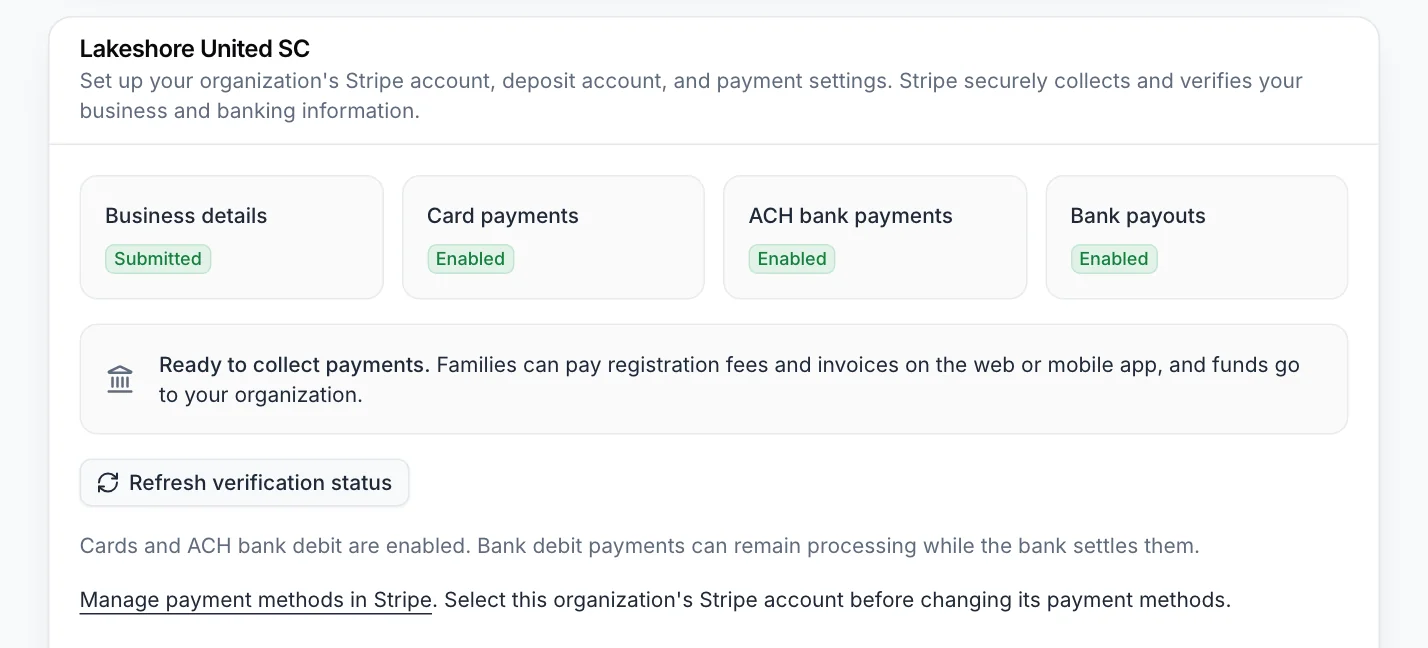
Stripe reviews what you submit. This usually takes minutes and sometimes a business day or two. When it finishes, the page says Ready to collect payments and shows Card payments, ACH bank payments and Bank payouts as Enabled.
Set the fee
3. Add a price to your program
Open Programs, select New program and turn on Take registrations online. Continue through Joining and Registration until you reach Price. Our guide to managing youth sports registration covers those earlier steps.
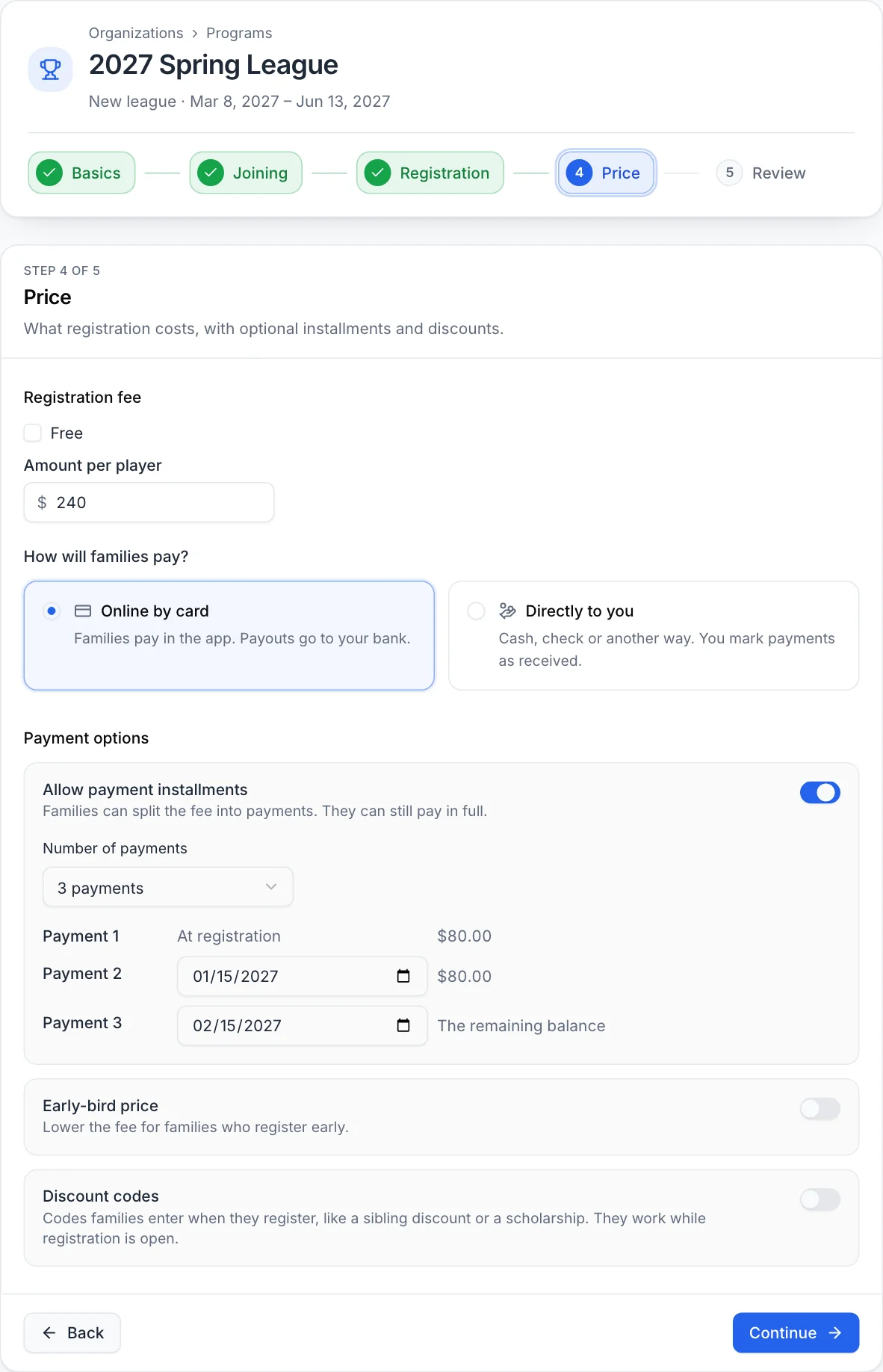
Clear the Free checkbox and enter the Amount per player. Under How will families pay?, choose Online by card. Choose Directly to you instead if you collect cash or checks and will mark payments as received.
If staff offer spots after tryouts, tryout sign-up stays free and families pay a season fee when they accept an offer. See how to run tryouts and send offers.
4. Offer installments
Turn on Allow payment installments, choose the Number of payments and set a date for each later payment. Payment 1 is due at registration and the final payment is the remaining balance. Families can still pay in full.
Choose dates that finish before the season starts, so nobody is following up on balances during games.
5. Add an early-bird price or discount codes
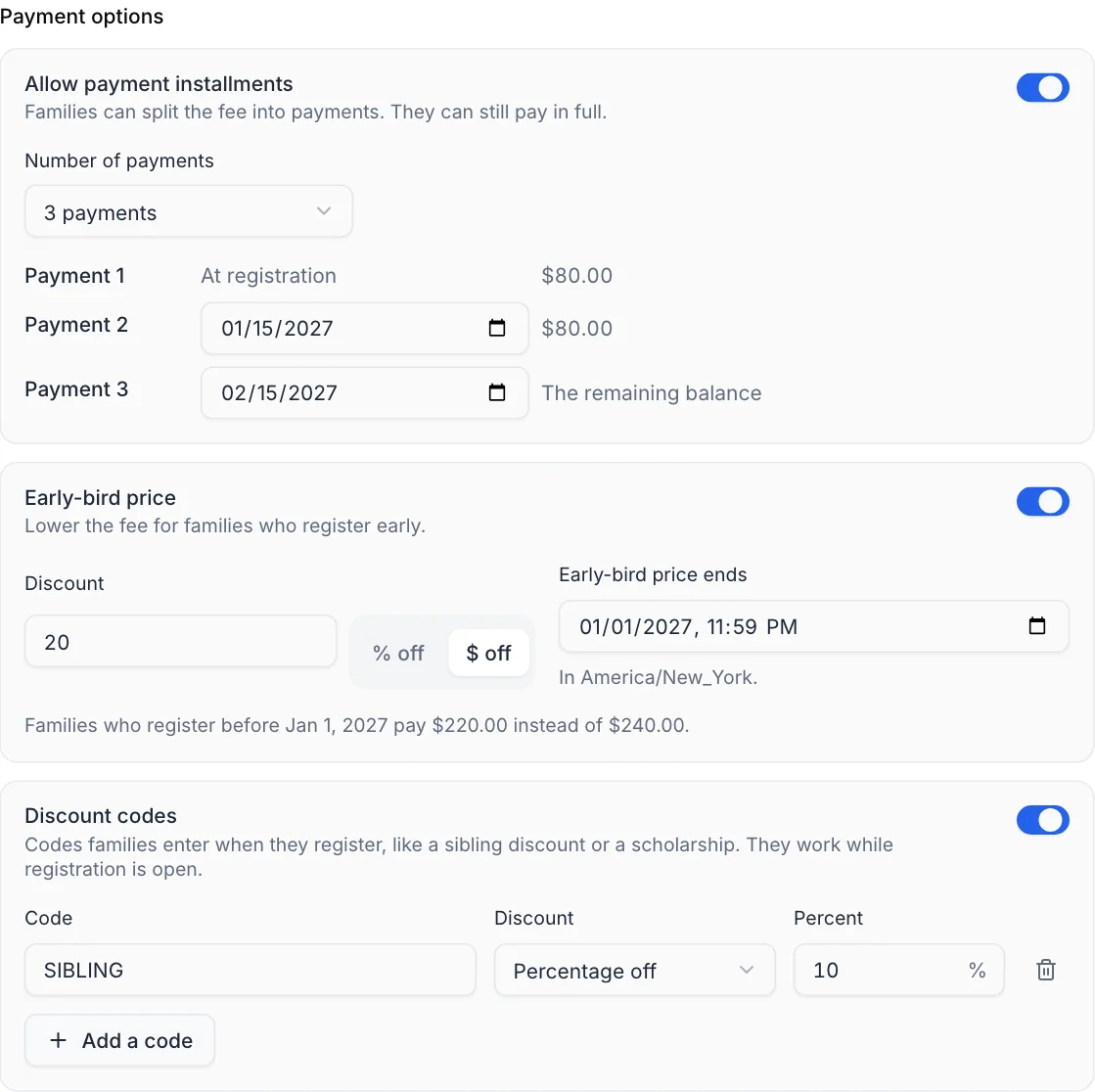
Turn on Early-bird price to lower the fee for families who register early. Enter the Discount, choose % off or $ off, and set Early-bird price ends. The step confirms what families will pay.
Turn on Discount codes for cases like a sibling discount or a scholarship. Each code can be a Percentage off, a Dollar amount off or Free registration. Codes work while registration is open.
On the Review step, check your answers, choose Open registration now and select Create program.
What families see
6. Families choose how to pay
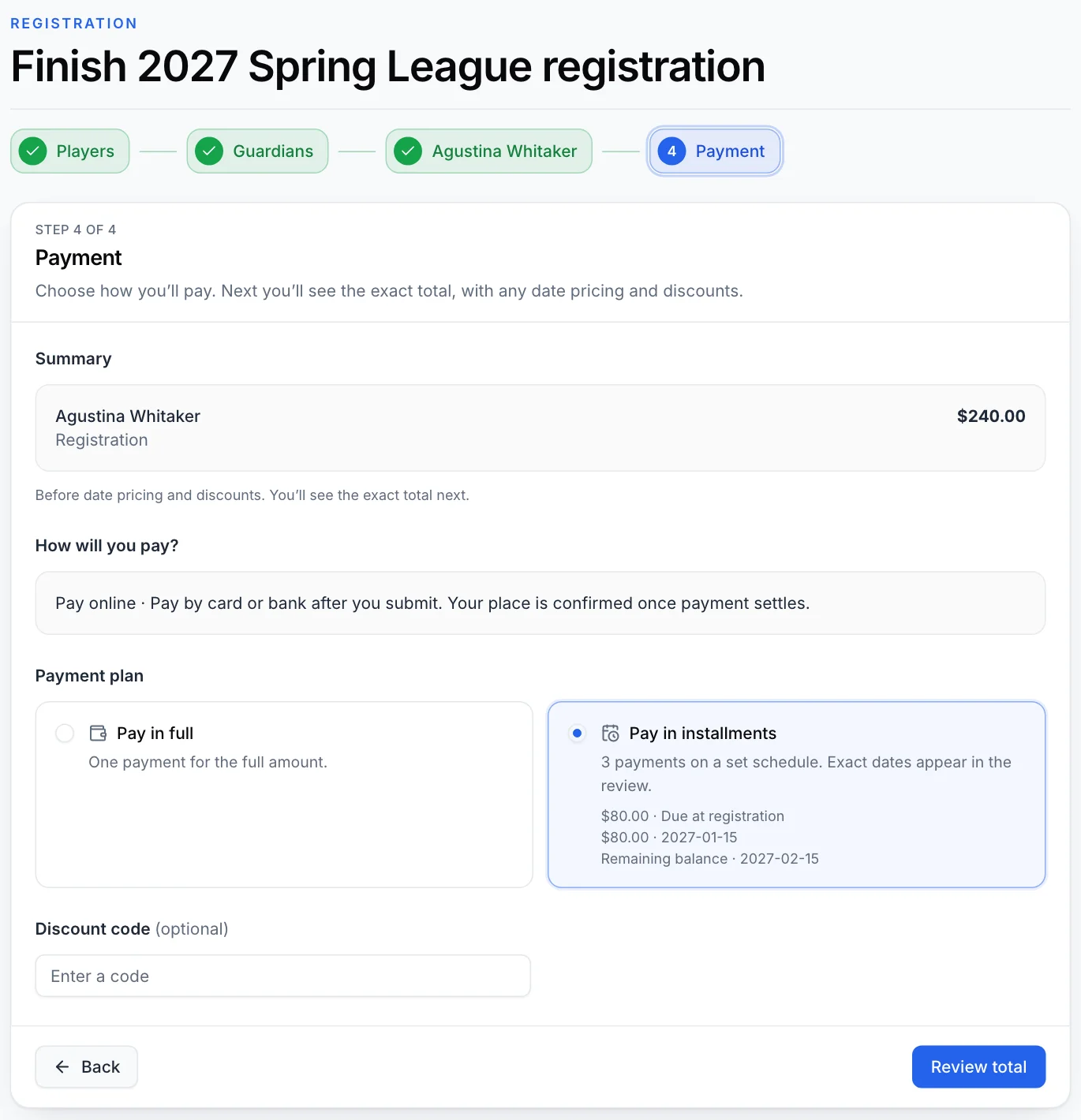
On the Payment step of registration, a family chooses Pay in full or Pay in installments and can enter a Discount code. Review total shows the exact amount with any early-bird price and discount applied, and Submit registration finishes the form.
7. Families pay the invoice
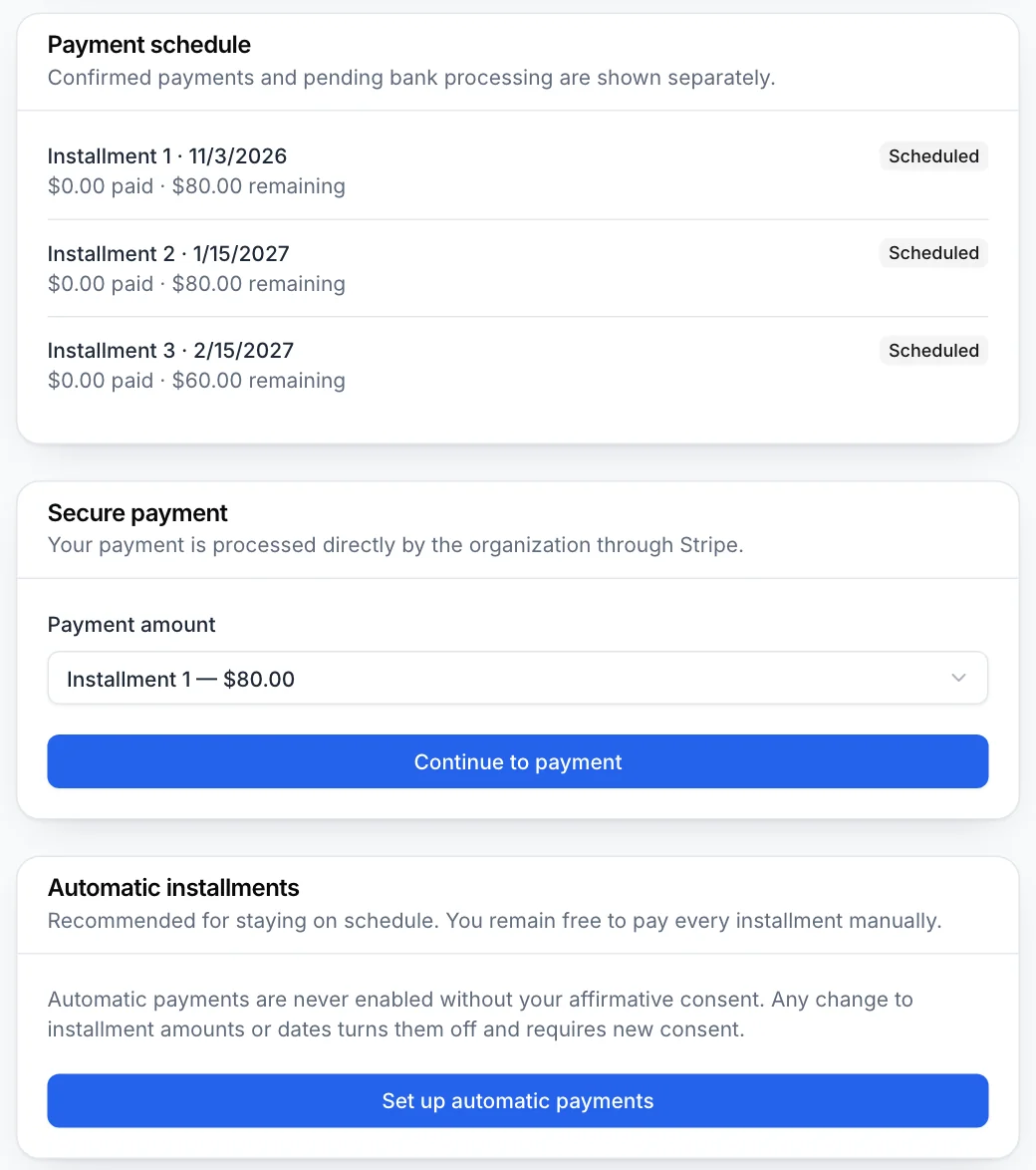
After submitting, the family lands on their invoice. It shows the Payment schedule and, under Secure payment, a Payment amount menu for the full remaining balance or a single installment. Continue to payment takes them to pay by card or bank.
Tell families that a place is confirmed once the payment settles. Bank payments can stay in processing until the bank confirms them.
Families on an installment plan can also select Set up automatic payments. Automatic payments are never turned on without the family's consent, and any change to installment amounts or dates turns them off until the family consents again.
Track and follow up
8. Review the Payments page
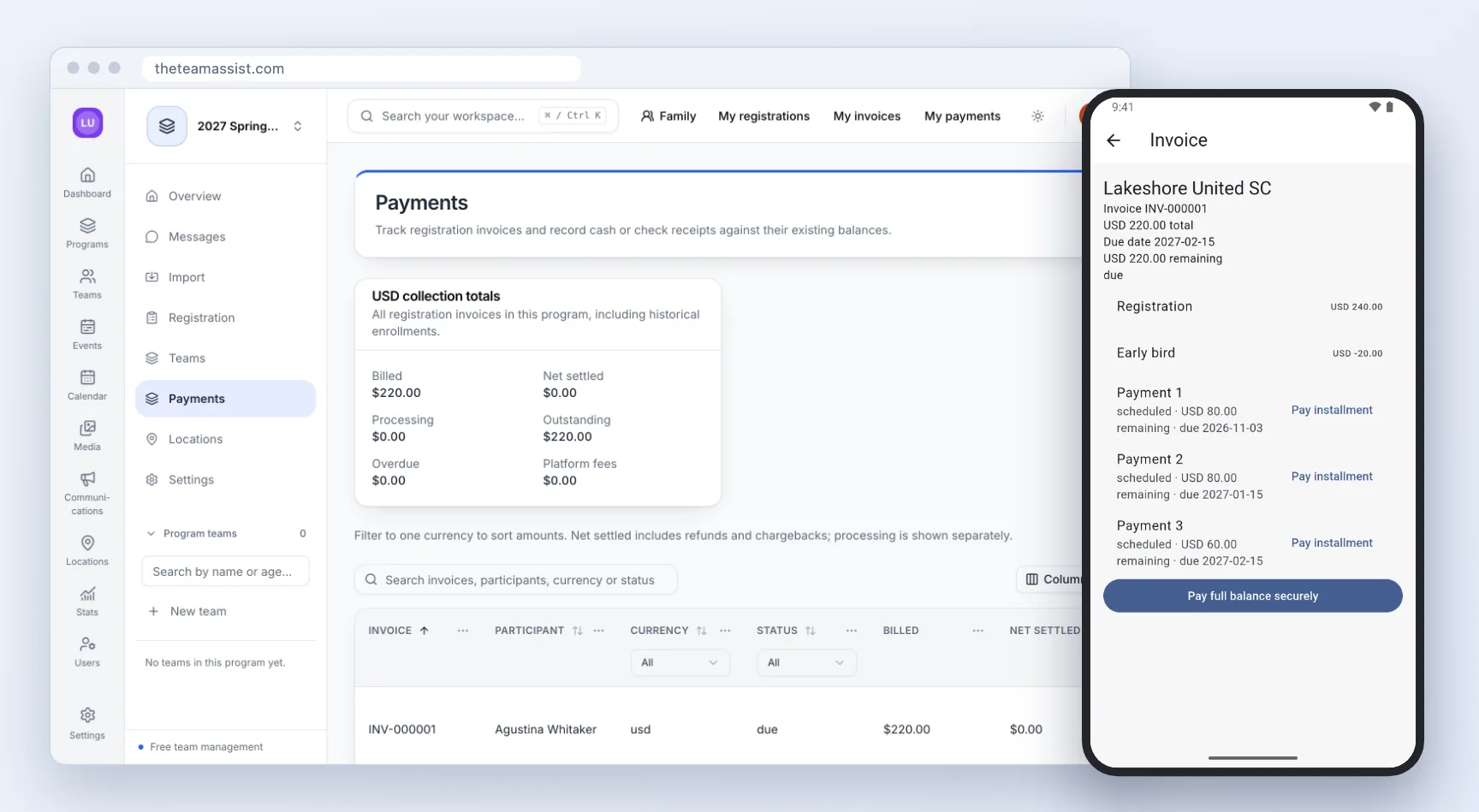
Open the program and select Payments. The totals show Billed, Net settled, Processing, Outstanding, Overdue and Platform fees. Each invoice has its own row, with Review finances for the details and Record receipt for cash or a check received against its balance.
The family sees the same invoice under Invoices in the Team Assist mobile app, which is coming soon, with Pay installment beside each payment and a Pay full balance securely button.
Check this page on a regular routine, and contact only the families whose balances are overdue. Our parent communication templates can help you keep those messages short and clear.
Publish your refund policy
Team Assist does not set your refund rules. Decide them before registration opens, and answer the questions families are most likely to ask:
- Is the fee refundable, and until what date?
- What happens to remaining installments if a player withdraws?
- Who should a family contact to ask for a refund?
Put the answer where families will see it before they pay. Team Assist's sports registration tools let you publish program details alongside the registration itself.